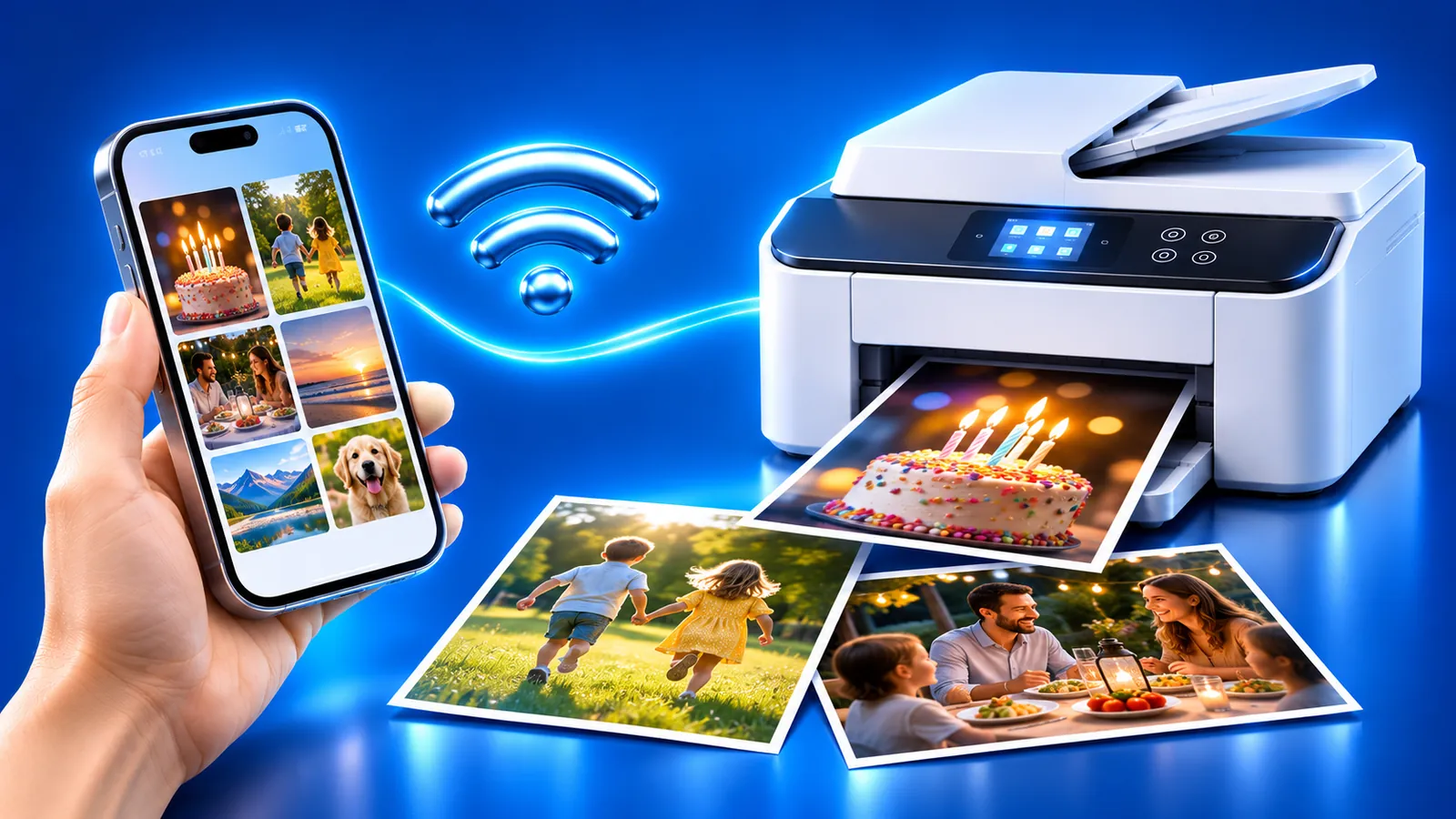
How to Print iPhone Photos on a Home Printer
 By the Smart Printer team · Updated · 3 min read
Short answer
To print iPhone photos at an exact size, open Smart Printer, pick the photo, choose 4x6, 5x7 or square and tap Print. The app finds your printer on Wi-Fi by itself. Without an app, open the photo in Photos, tap Share, then Print, which works with AirPrint printers on the same Wi-Fi network.
Contents
Print photos at an exact size with Smart Printer
The app is the quickest route when you care about the print size. It finds the printer on your Wi-Fi itself.
- Open Smart Printer and tap your printer in the list.
- Pick the photo you want to print.
- Pick the size: 4x6, 5x7 or square, and the paper size loaded in the tray.
- Set copies and margins, then tap Print.
Prefer the built-in way? The next section covers it.
How to print from Photos on iPhone
Apple's own path works with any AirPrint-enabled printer on the same Wi-Fi network. Apple describes it in Use AirPrint to print from your iPhone or iPad.
- Open the Photos app and open the photo.
- Tap the Share button, then tap Print. Swipe up on the menu if you don't see it.
- Tap No Printer Selected and pick your printer.
- Set the number of copies and tap Print in the upper-right corner.
To print several photos at once, tap Select in your library, tap each photo, then tap Share and Print.
Some printers and apps add a paper size choice to the print options. If yours doesn't offer 4x6, use the app above. Our guide to printing without AirPrint helps if the printer is missing.
How to print a picture from iPhone at the right size
Photo size and paper size are two settings. A 4x6 print needs 4x6 paper in the tray and 4x6 chosen on screen. If the sizes differ, the printer shrinks the picture and leaves white borders.
See 4x6 photo size and 5x7 photo size for the full layouts and cut lines, or photo paper sizes for other formats.
| Print size | Centimeters | Pixels at 300 dpi |
|---|---|---|
| 4x6 in | 10.2 x 15.2 cm | 1200 x 1800 |
| 5x7 in | 12.7 x 17.8 cm | 1500 x 2100 |
Paper and print settings that matter
- Load photo paper with the glossy side facing the way your printer's manual shows.
- Pick the matching paper type, such as Photo Paper, in the app or on the printer, so it lays down the right amount of ink.
- Choose color unless you want a gray print.
- Print one copy first and check the crop before you print a batch.
Apps to print photos from iPhone
An app to print photos from iPhone should find the printer by itself, offer fixed photo sizes and print from the camera roll. Smart Printer does all three.
Your printer maker's app, such as the HP app or Epson Smart Panel, also prints photos. Each works with its own brand only, so a second printer brand means a second app. HP lists its options in Mobile printing solutions for HP printers.
When the printer won't show up
Put the iPhone on the same Wi-Fi as the printer, turn off VPN and restart the printer. If that fails, read why you can't print from your phone, which covers every cause.
What to remember
- Photos > Share > Print works with an AirPrint printer on the same Wi-Fi.
- Match the on-screen size to the paper in the tray.
- Smart Printer prints 4x6, 5x7 and square at the size you pick.
- Print one copy before a batch to check the crop.