How to Print From iPad (and Connect Your Printer)
 By the Smart Printer team · Updated · 4 min read
Short answer
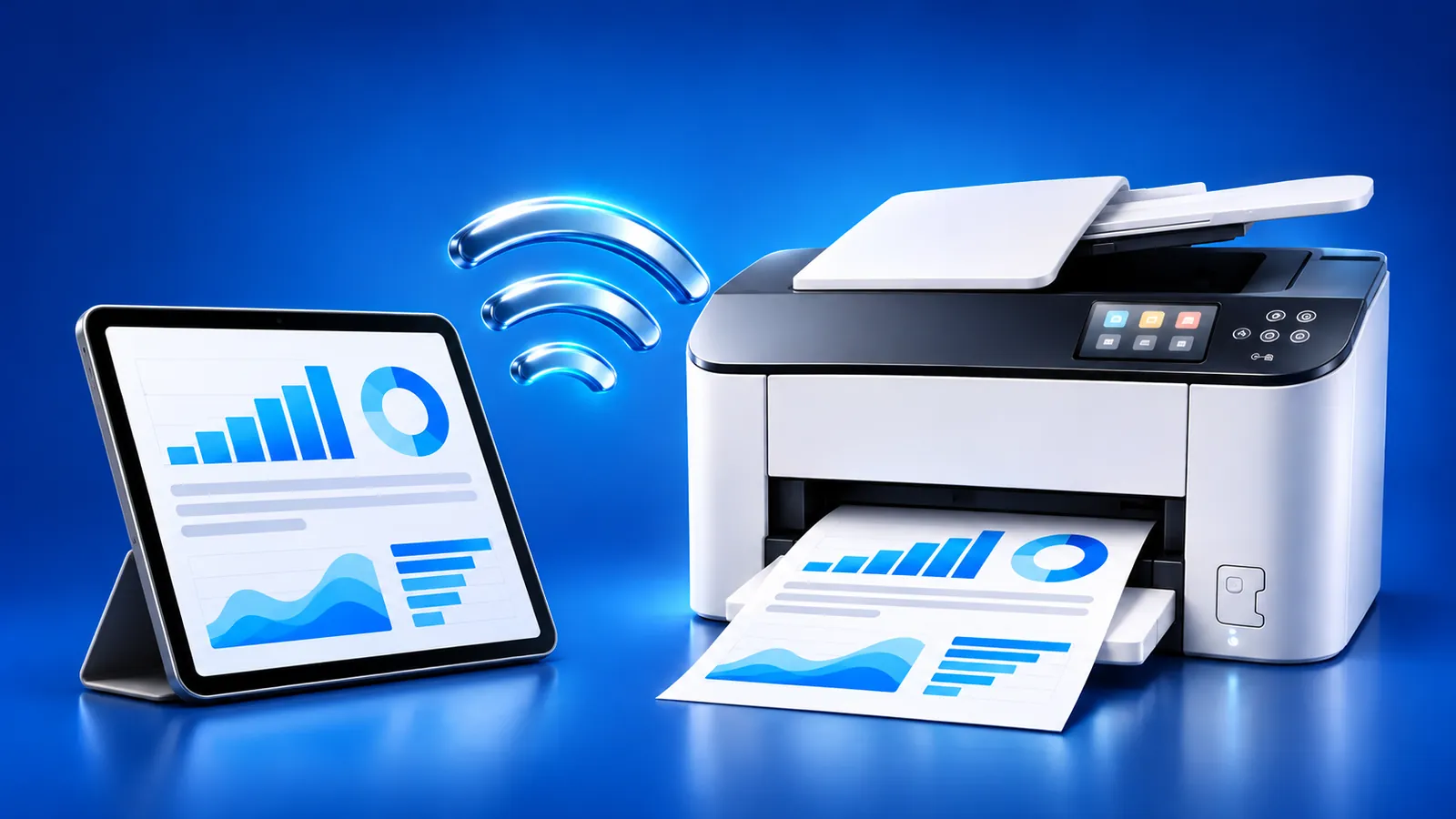
To print from iPad, use 1 of 2 ways. Smart Printer finds the printer on your Wi-Fi and prints photos, PDFs and files, with or without AirPrint. With AirPrint, join the iPad and printer to the same Wi-Fi, then tap Share > Print and pick the printer. There is no Add Printer button to look for.
Contents
- How do you print from an iPad?
- How to add a printer to iPad: there is no add button
- How to connect iPad to printer with AirPrint
- How to connect printer to iPad when it isn't listed
- Printer settings on iPad
- How to set up printer on iPad without AirPrint
- How to install printer on iPad: nothing to download
- Print from iPad: questions
How do you print from an iPad?
There are two ways. Smart Printer finds the printer on your Wi-Fi and prints even when the built-in menu shows nothing. The built-in way, AirPrint, works with printers that support it.
In both cases the iPad and the printer must be on the same Wi-Fi network. Check that first, because a guest network or a second router often keeps a printer hidden.
How to add a printer to iPad: there is no add button
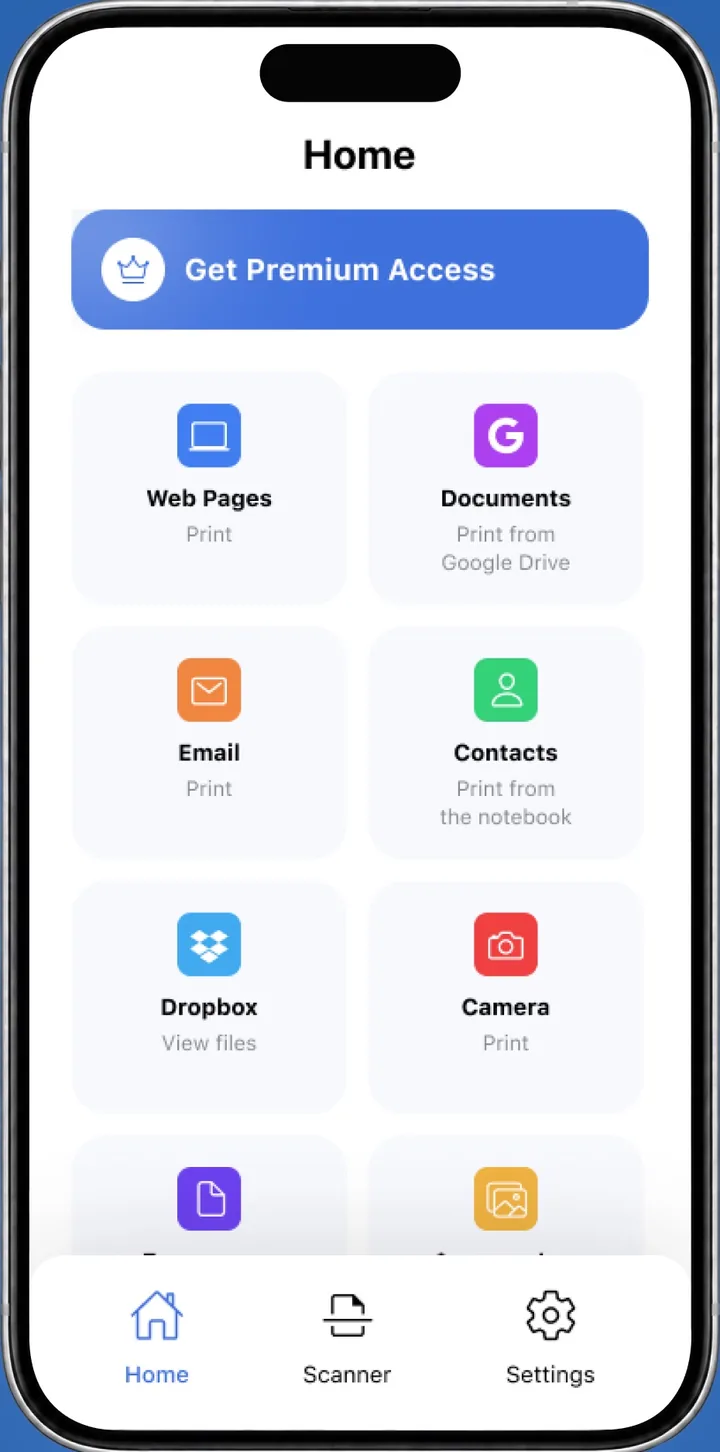
Smart Printer is the quickest way to add a printer: open it, and it lists the printers on your Wi-Fi. It also finds printers the built-in menu misses. Pick yours and print a test page.
iPadOS itself has no Add Printer button in Settings. The iPad lists every AirPrint printer it can reach when you start printing, so adding one means putting it on the same Wi-Fi.
How to connect iPad to printer with AirPrint
The steps below show how to set up a printer on an iPad and print in one go. Apple documents the steps in Use AirPrint to print from your iPhone or iPad.
- Turn on the printer and connect it to your Wi-Fi from its control panel.
- On the iPad, open Settings > Wi-Fi and join the same network.
- Open the app with your document, photo or web page.
- Tap the Share button or the Actions button, scroll down and tap Print.
- Tap No Printer Selected and choose your printer.
- Set the copies and pages, then tap Print in the upper-right corner.
That's how to add a printer to an iPad: once it shows up on the Print screen, it's ready to use.
Not all apps support printing. If you don't see Print, check the app's Help section or open the file in Files or Photos.
How to connect printer to iPad when it isn't listed
Open Smart Printer, and it scans your Wi-Fi network for the printer. Pick yours from the list and print a test page, with no drivers or AirPrint needed.
To fix the built-in route, restart the printer and the router, turn off VPN and check that the printer supports AirPrint. Our AirPrint not working guide goes through every check.
Printer settings on iPad
Printer settings on iPad sit on the Print screen after you pick a printer: copies, page range and any extras the printer offers. Paper type and print quality live in the printer's own menu or the maker's app. Smart Printer adds paper size (Letter, A4, Legal), orientation, margins and scale.
How to set up printer on iPad without AirPrint
Without AirPrint, iPad printer setup takes an app. Smart Printer works with most brands, and each maker's app works with its own. Our guide to printing without AirPrint compares the options.
For a first print, a test page tells you right away whether the connection works. Smart Printer prints one with a single tap.
How to install printer on iPad: nothing to download
An iPad needs no printer driver. AirPrint and Smart Printer both send the job over Wi-Fi, so setup means joining the printer's network and picking the printer. A maker's app helps with Wi-Fi setup on printers without a screen, and it adds extras like scanning. Apple's About AirPrint page confirms that AirPrint works without drivers.
What to remember
- Put the iPad and the printer on the same Wi-Fi, then use Share > Print.
- There is no Add Printer button on iPad, and no driver to install.
- Smart Printer finds printers that the AirPrint list misses.
- Copies and page range appear on the Print screen.