HP Printer Test Page: How to Print One
Send a free color test page to your HP printer from this tab, or use HP's own reports below.
Updated
Color test pageInks, gradients, grays, lines and text on one sheet
In the print dialog keep Scale at 100% and Margins at Default or None.
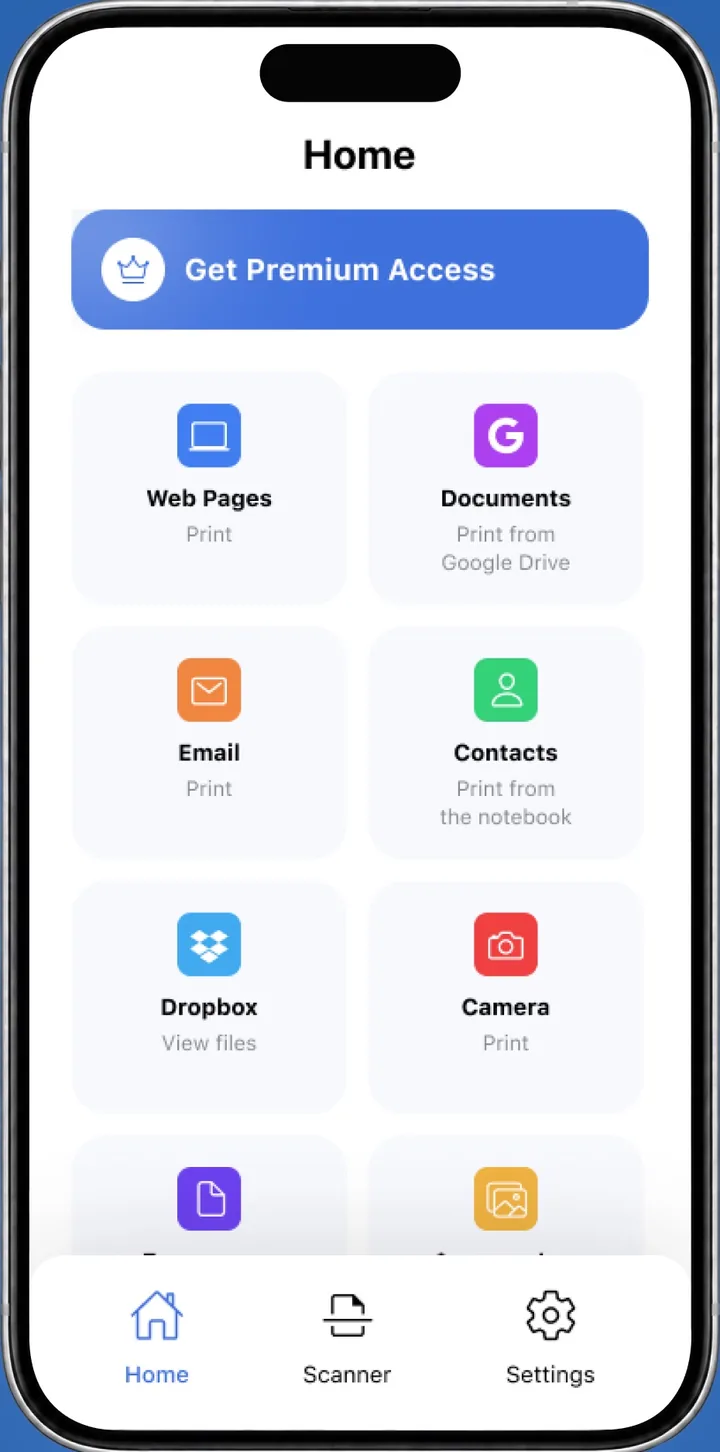
 On your iPhone? Smart Printer prints a test page on your HP printer in one tap.Test my HP from iPhone
An HP printer test page is a self-test report, usually the Printer Status Report or the Print Quality Report. Print one from the printer's Setup menu, then Reports or Tools, or from the HP app (formerly HP Smart). On several Smart Tank models, hold the Information button for 5 seconds. Our color test page prints on any HP.
Did your HP page print right?
Looks good
Solid colors and crisp text mean the printhead and ink are fine. Your HP is ready for the real job.
Print an HP printer test page from the control panel
Menu names differ by model. On HP printers with a display, the reports usually sit under Setup, then Reports or Tools.
- Load plain white paper in the input tray.
- On the printer display, open Setup, then Reports or Tools.
- Choose Printer Status Report or Print Quality Report.
- Wait for the page to print.
Models without a display use button combinations instead. On several Smart Tank models, you hold the Information button for five seconds, then press Resume to print the Printer Status Report. Search your model on HP's support site for the exact buttons. HP lists the steps for the DeskJet 2700, 4100 and 4800 and the OfficeJet 8010, 8020 and 8030.
Print the quality report from the HP app
On many DeskJet models, the HP app (formerly HP Smart) prints the Print Quality Report, so you don't need the printer's buttons.
- Load plain white paper and turn the printer on.
- Open the HP app and tap your printer's image.
- Scroll to Diagnostics or Tools, then tap Print quality tools or Printer Reports.
- Tap Print quality report.
The HP app covers the quality report. For the Printer Status Report, use the printer's menu or buttons.
Which HP report should I print?
Each report answers a different question about your printer.
| Report | What it shows |
|---|---|
| Printer Status Report | General printer information, such as product details and connectivity settings. Use it to confirm the printer joined your Wi-Fi. |
| Print Quality Report | Whether the printhead needs cleaning or alignment. |
| Our color test page | Colors, gradients, gray steps and text, printed from your browser to any printer. |
Print our test page on an HP from your browser
The page above works with HP and every other printer. It prints from this tab, with no HP software.
- Pick Color test page, Nozzle check or another page above.
- Choose Letter, A4 or Legal.
- Press Print test page and select your HP printer.
- Set Scale to 100% and press Print.
How to read the printed page
| What you see | What to do |
|---|---|
| Faded colors or white lines | Run Clean Printhead from the HP app or the printer menu, then print again. |
| Crooked or doubled lines | Run the alignment tool, called Align Printer or Align Printheads in the HP app. |
| One color missing | Check that cartridge or tank. Check ink levels. |
| Nothing prints at all | The printer may be offline. Fix a printer that says offline. |
HP test page questions
How do I print an HP printer test page without a computer?
Use the printer's own menu: open Setup, then Reports or Tools, and choose Printer Status Report or Print Quality Report. Models without a display use a button combination.
Which HP printer test page checks print quality?
The Print Quality Report, one of HP's self-test pages. It shows whether the printhead needs cleaning or alignment, and the HP app prints it on many DeskJet models.
Can I print an HP printer test page from my iPhone?
Yes. Open this page in Safari and press Print test page, or print one from the Smart Printer app in one tap.
Which HP printer test page shows the Wi-Fi connection?
The Printer Status Report. It lists product details and connectivity settings, so you can see whether the printer joined your network.
How do I print an HP printer test page on a Smart Tank?
On several Smart Tank models, hold the Information button for five seconds, then press Resume to print the Printer Status Report. Search your model on HP's support site for the exact buttons.
How do I print an HP printer test page from Windows?
Open Start > Settings > Bluetooth & devices > Printers & scanners and select your HP. Choose Printer properties, then Print Test Page on the General tab.
Print on your HP from your iPhone
Smart Printer finds your HP printer on your network and prints a test page in one tap.
4.0500 ratings on the App Store