How to Connect a Printer to Your Phone: Wi-Fi, Wi-Fi Direct and USB
 By the Smart Printer team · Updated · 4 min read
Short answer
To connect a printer to a phone, use 1 app on iPhone or 1 print service on Android. On iPhone, open Smart Printer: it finds the printer on your Wi-Fi, so you tap its name and print. On Android, turn on a print service under Settings > Connected devices > Connection preferences > Printing. Both need one Wi-Fi network.
Contents
Check these before you connect
Three quick checks save most setup trouble:
- The printer is on and its Wi-Fi light is steady. If it is blinking, finish the printer's own Wi-Fi setup first with our connect a printer to Wi-Fi guide.
- The phone is on that same network. Guest networks and mesh nodes with a separate name are the usual trap.
- VPN and Low Data Mode are off for now.
How to connect your phone to a printer on iPhone
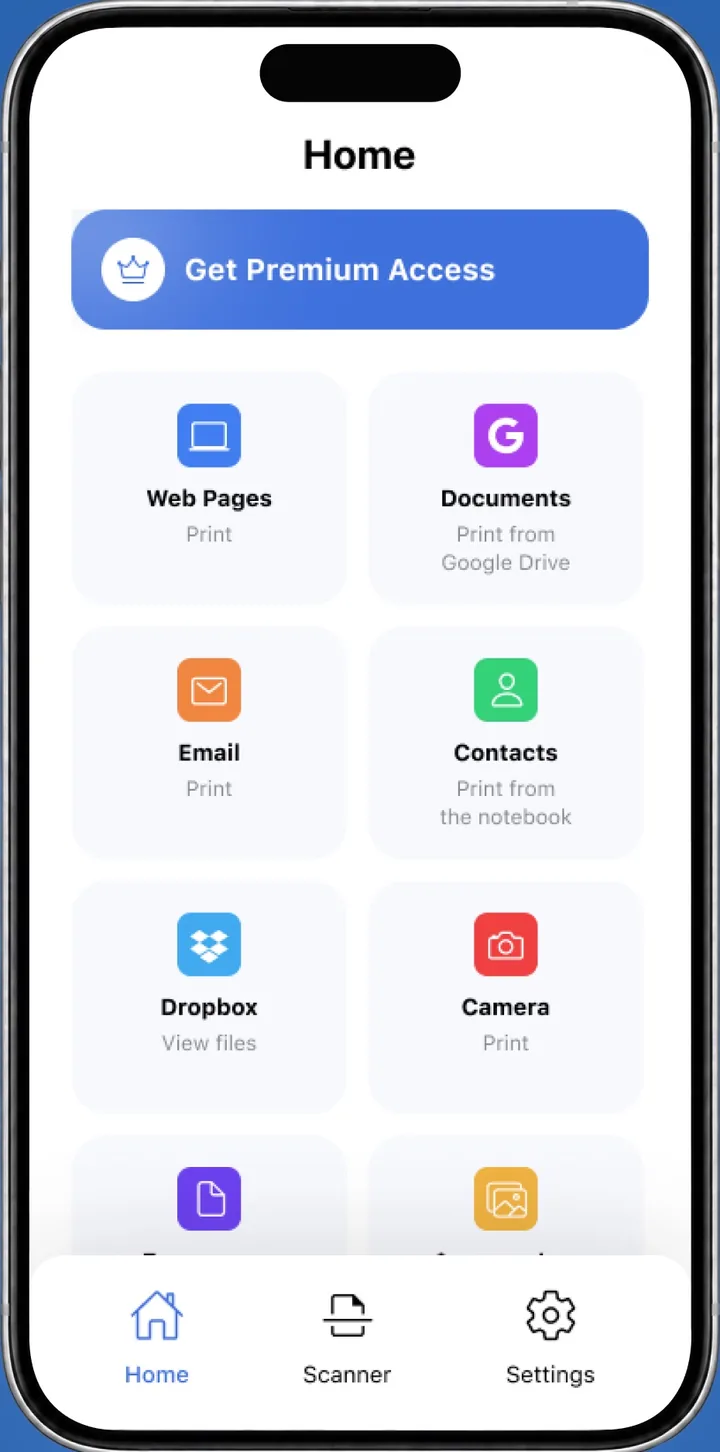
An iPhone has no pairing screen for printers. It prints over the network, so connecting means opening an app that can see the printer.
- Open Smart Printer. It searches your Wi-Fi and lists the printers it finds.
- Tap your printer in the list.
- Print a test page in one tap to confirm the link works.
To use AirPrint instead, open any app, tap Share, scroll to Print, tap No Printer Selected and choose your printer. Apple says the printer must support AirPrint and sit on the same Wi-Fi network as the iPhone. Apple explains it in Use AirPrint to print from your iPhone or iPad.
Printers plugged into the USB port of an AirPort Base Station or AirPort Time Capsule, or linked to a computer over Bluetooth, can't use AirPrint.
How do I connect my phone to my printer on Android?
- Open Settings, then Connected devices, then Connection preferences, then Printing.
- Tap a print service and turn it on. To add another, tap Add service.
- Open a photo or file, tap Menu or More, then Print. In some apps, tap Share first.
- Tap the down arrow at the top and choose your printer.
If the printer never appears, install Mopria Print Service from Google Play or the maker's app, such as the HP app or Epson Smart Panel. Menu names vary by phone maker and Android version. Mopria covers the service on its Print From Android page.
Connect with Wi-Fi Direct
Wi-Fi Direct lets a printer broadcast its own network, so a phone can print with no router. Menu names differ by maker, so check your printer's manual. HP shows one example in HP printer setup (Wi-Fi Direct).
- On the printer, turn on Wi-Fi Direct from the network or wireless menu.
- Note the network name and password. Some printers show them on screen or on a printed setup page.
- On the phone, open Wi-Fi settings and join that network.
- Open your print app and choose the printer.
While you are joined, the phone has no Wi-Fi internet. Switch back to your normal Wi-Fi when you finish.
Connect a printer to a phone with USB
Some printers also print from an Android phone over a USB cable and an OTG adapter, through the maker's print plugin. Support depends on the phone and the printer, so check the maker's help page first.
An iPhone has no USB route for printing, because AirPrint needs a Wi-Fi or wired network. Use Wi-Fi with Smart Printer instead.
Print your first page after connecting
Open the photo, PDF, email or web page, choose the printer, set copies and paper size, and tap Print. The full routine is in our guide on how to print from your phone. Send a page from the printer test page tool first if you want to check colors.
When the printer won't show up
Restart the printer and the router, then check the network name on both devices. Our guide on why you can't print from your phone goes through every cause, and printer offline covers the status message.
What to remember
- Phone and printer must share one Wi-Fi network.
- Smart Printer finds the printer on iPhone with no pairing.
- Android connects through Settings > Connected devices > Connection preferences > Printing.
- Wi-Fi Direct works without a router, and some Android setups print over USB.