Connecting a Printer to WiFi: How to Set It Up on Any Printer
 By the Smart Printer team · Updated · 4 min read
Short answer
To connect a printer to Wi-Fi, use the setup wizard on its screen, the WPS button on your router or the maker's phone app. Pick your network, enter the password and wait for the Wi-Fi light to stop blinking. With WPS, press the router button within 2 minutes. Many printers join only 2.4 GHz networks. Then Smart Printer finds the printer.
Contents
Before you start
A few minutes of preparation prevent most failed attempts. Check these first:
- Know your network name (SSID) and password. They are often printed on the router label.
- Keep the printer near the router for the first setup.
- Many printers join only a 2.4 GHz network. If your router combines 2.4 and 5 GHz under one name, that is fine. If they have separate names, pick the 2.4 GHz one.
- Turn the printer on and clear any paper jam or cartridge error.
Connect with the setup wizard on the printer
This is the most common method and needs only the printer and the router password. Menu names change by maker and model.
- Open the Settings, Setup or Network menu on the printer's screen.
- Choose Wi-Fi Setup Wizard, Wireless Setup or a similar entry.
- Select your network name from the list.
- Enter the password with the on-screen keyboard. Passwords are case sensitive.
- Wait for a message such as Connected, or for the Wi-Fi light to stop blinking.
Print a network or test page afterwards. It shows the network name and IP address the printer joined.
Connect with WPS
WPS skips the password. Your router needs a WPS button, and the printer needs a WPS option in its wireless menu.
- On the printer, choose WPS or WPS Push Button in the wireless menu.
- Within two minutes, press the WPS button on the router.
- Wait until the printer reports that it is connected.
If nothing happens after two minutes, start again. Newer routers sometimes switch WPS off, so check the router settings.
Connect with the maker's app
Printers without a screen are set up from a phone. Install the app for your brand, open it and follow the prompts to send your Wi-Fi details to the printer.
- HP printers: the HP app, formerly HP Smart. Our HP DeskJet 4155e guide shows the full flow. HP explains it in HP printer setup (Wi-Fi network).
- Brother printers: Brother Mobile Connect. See the Brother Wi-Fi guide. Brother lists the app on its Mobile Connect install page.
- Canon printers: Canon PRINT.
- Epson printers: Epson Smart Panel.
Print from your iPhone once it is connected
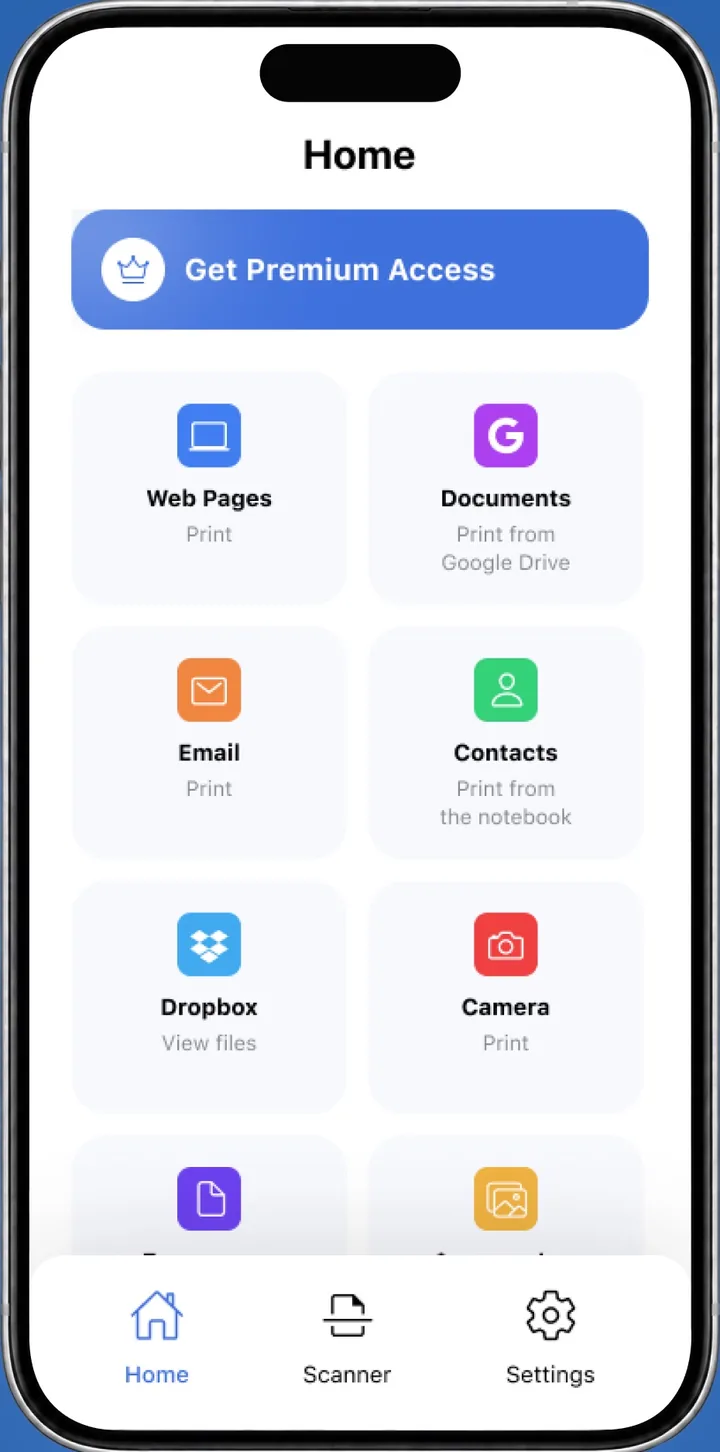
After the printer is on your Wi-Fi, open Smart Printer on your iPhone or iPad. It finds the printer on the same network and prints photos, PDFs, web pages and files. HP, Canon, Epson, Brother and thousands of other models work without drivers.
To add the printer through iOS settings instead, follow our guide to adding a printer to iPhone.
Check that it worked
Do not trust the light alone. Confirm the connection in one of these ways:
- Print a network configuration page or WLAN report from the printer menu. It shows the network name, signal and IP address.
- Check that the Wi-Fi light is solid.
- Print a test page from your phone or computer. The free printer test page works for this.
- Look for the printer in your router's list of connected devices.
Keep the connection stable
A printer that joins Wi-Fi and drops a day later is a common complaint. These habits help:
- Keep the printer within range of the router and away from thick walls and microwaves.
- Reserve a fixed IP address for the printer in the router settings.
- Update the printer firmware from the maker's app or the printer menu.
- Reconnect the printer after you change the router or the Wi-Fi password.
Common errors when connecting a printer to Wi-Fi
If the connection fails, one of these is usually the cause:
Connected, then dropped out later? Read why a printer says offline.
- Wrong password. Retype it slowly and check capital letters.
- 5 GHz only. Switch to the 2.4 GHz network name for setup.
- Router too far away. Move the printer closer for setup.
- Guest network or MAC filtering on the router. Use the main network or allow the printer's address.
- The printer connected, but your phone sits on a different network. Join the same Wi-Fi on both.
What to remember
- Use the printer's setup wizard, WPS or the maker's app.
- Keep the printer on a 2.4 GHz network and close to the router during setup.
- A network or test page shows which network the printer joined.
- Once connected, Smart Printer finds the printer from your iPhone.