How to Add a Printer to iPhone (AirPrint Setup)
 By the Smart Printer team · Updated · 4 min read
Short answer
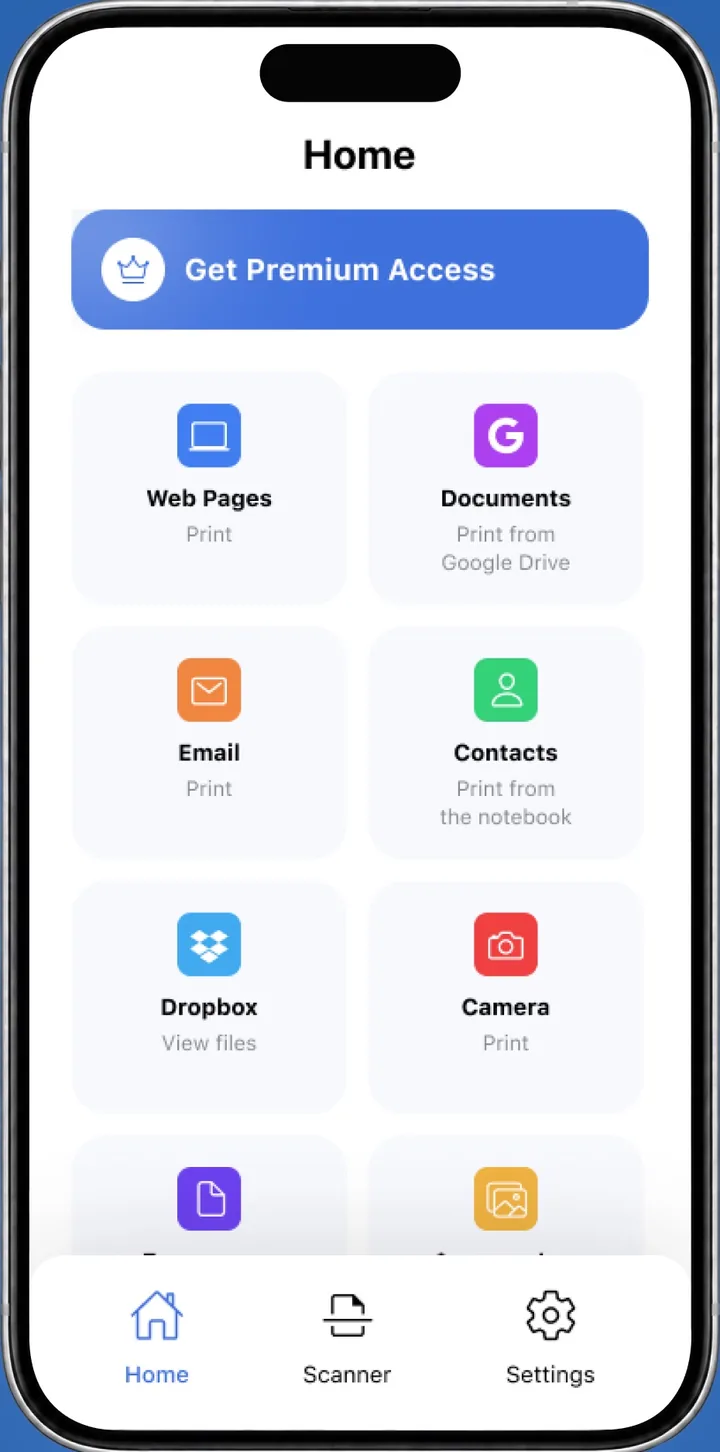
To add a printer to iPhone, open Smart Printer: it lists the printers on your Wi-Fi, with nothing to install or pair. iOS has no Add Printer button. With AirPrint, put both on the same Wi-Fi and tap Share, then Print. That is 2 taps and 1 choice: the printer under No Printer Selected. Check first that the printer supports AirPrint.
Contents
- How to add a printer to iPhone the quick way
- How to set up printer on iPhone with AirPrint
- Checks before you add a wireless printer
- Why the printer doesn't appear
- AirPrint settings on iPhone: where they are
- How to AirPrint a photo, PDF or web page
- How to print on iPhone from any app
- Adding a printer to iPhone: questions
How to add a printer to iPhone the quick way
Open Smart Printer, and it lists the printers on your Wi-Fi, including ones the built-in menu misses. Pick yours and print a test page to confirm the connection. It works with HP, Canon, Epson, Brother and many other makers.
iOS itself works differently from a computer. There is no Add Printer button in Settings, and the iPhone looks for printers only when you start a print job.
How to set up printer on iPhone with AirPrint
This is Apple's own method. It works when the printer supports AirPrint and sits on the same Wi-Fi as your iPhone. Apple documents it in Use AirPrint to print from your iPhone or iPad.
- Connect the printer to your home Wi-Fi from its control panel or the maker's app.
- Join the same Wi-Fi network on your iPhone in Settings > Wi-Fi.
- Open the app with the file you want to print, such as Photos, Files or Safari.
- Tap the Share button, then tap Print. Swipe up on the menu if you don't see it.
- Tap No Printer Selected and choose your printer from the list.
- Set the number of copies and pages, then tap Print in the upper-right corner.
Not every app has a Print option. If you can't find it, check the app's Help section or open the file in Files or Photos instead.
Checks before you add a wireless printer
Most failed setups come from one of these:
- The printer and the iPhone are on different Wi-Fi networks, such as a guest network or a mesh node with its own name.
- The printer is asleep or off. Wake it with a button press.
- The printer connects over USB only. AirPrint needs a Wi-Fi or wired network.
- The printer doesn't support AirPrint. Check the box or Apple's AirPrint search, as covered in our AirPrint printers guide. Apple's About AirPrint page links to the search.
Why the printer doesn't appear
Open Smart Printer first: it searches the network on its own and prints without AirPrint. If it finds the printer, you can print right away.
To fix the built-in menu, restart the printer and the router, turn off VPN and put the iPhone back on the same Wi-Fi. The AirPrint not working guide covers the rest of the checks.
AirPrint settings on iPhone: where they are
There are no AirPrint settings to switch on in the Settings app. Everything you can change sits on the Print screen after you pick a printer, such as copies and page range. Some printers add more options there, and the rest lives in the printer's menu or the maker's app.
How to AirPrint a photo, PDF or web page
The same Share > Print path works in most apps. In Photos, open the picture first. In Files, open the document and tap Share.
In Safari, tap the Share button, then Print. With the Compact tab layout, open the menu next to the address bar first. For photos at exact sizes, see our guide to print photos from iPhone.
How to print on iPhone from any app
Smart Printer prints photos, PDFs, files from Google Drive and Dropbox, emails, web pages and contacts from one place. Pick the paper size, copies and page range, then print. For the full overview, read how to print from your phone.
What to remember
- iOS has no Add Printer menu. AirPrint finds the printer when you tap Share > Print.
- The iPhone and the printer must be on the same Wi-Fi network.
- Smart Printer searches the network itself and works when the built-in menu finds nothing.
- Print options such as copies and page range appear on the Print screen.