How to Print From Chromebook: Wi-Fi and USB Printers
 By the Smart Printer team · Updated · 3 min read
Short answer
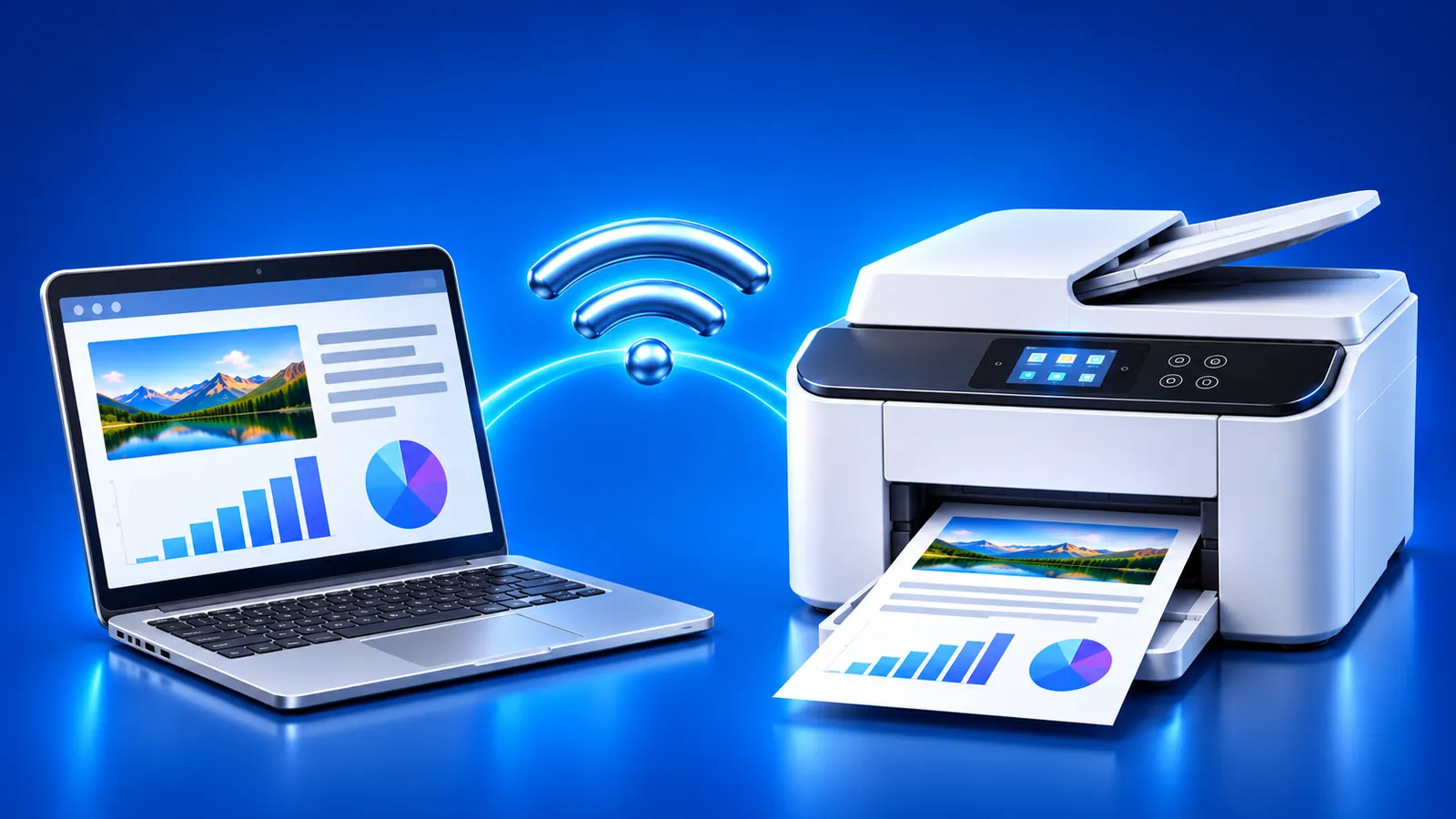
To print from a Chromebook, connect the printer 1 of 2 ways, Wi-Fi or USB, then press Ctrl + P. Next to Destination, click the arrow, choose See more, pick your printer and select Print. Save the printer in Settings under Printers and scanners to keep it as your default for next time.
Contents
Connect the printer to your Chromebook
Google's Chromebook help covers two connection types. Pick the one that matches your printer. Google also lists compatible Chromebook printers.
- Network printer: turn it on, connect it to your Wi-Fi network by following the maker's instructions, then connect the Chromebook to the same network.
- USB printer: plug it into the Chromebook with a USB cable. A notification appears with on-screen instructions to follow.
How to print from Chromebook with Ctrl+P
Once the printer is connected, you can print from Chrome, Google Docs, Gallery or most other apps.
- Open the page, document or photo you want to print.
- Press Ctrl + P to open the print dialog.
- Next to Destination, click the down arrow and select See more.
- Choose your printer from the list.
- Set pages, copies or color if needed, then select Print.
Want to check quality first? Print our printer test page from Chrome.
Save the printer in Settings
Saving a printer makes it your default and keeps it in the print dialog. Google describes it in Set up your printer.
- Select the time at the bottom right, then the Settings gear.
- Under Device, scroll to Printers and scanners and select Print.
- Under Other available printers, find your printer and select Save.
- Check that it now appears at the top of Your saved printers.
Add a printer manually
If the printer doesn't show up, add it yourself. You need its IP address, which is listed in the printer's network menu or manual.
- Open Settings > Printers and scanners > Print.
- Select Other available printers, then Add printer manually.
- Enter a name you will recognize and the printer's IP address.
- Leave Protocol on Internet Printing Protocol (IPP) unless the printer's manual says otherwise, then select Add.
If your model needs a driver file, select Set up next to the printer, choose the maker and model, and select Add.
Printer not showing up on Chromebook?
- Check that the Chromebook and printer are on the same Wi-Fi network. A guest network keeps them apart.
- Restart the printer and wait until its Wi-Fi light stops blinking.
- Reconnect a USB cable, or try another port.
- On a work or school Chromebook, ask your administrator, since they can block adding printers.
- If the printer shows as unreachable, follow our printer offline guide.
Print from your iPhone as a backup
Chromebook stuck, or a document sitting on your phone? Smart Printer prints from an iPhone or iPad to the same Wi-Fi printer. Our print from phone guide covers the basics.
What to remember
- Connect the printer by Wi-Fi or USB first.
- Press Ctrl + P, open Destination, select See more and choose the printer.
- Save the printer under Settings > Printers and scanners to make it the default.
- If it is missing, add it manually with its IP address.