AirPrint Not Working? Fixes for No AirPrint Printers Found
 By the Smart Printer team · Updated · 3 min read
Short answer
AirPrint not working usually means the iPhone can't see the printer: different Wi-Fi, a VPN, a sleeping printer or no AirPrint support. The fastest fix is Smart Printer, which searches your Wi-Fi itself and prints without AirPrint. To fix AirPrint instead, join both devices to 1 Wi-Fi, turn off VPN, unplug the printer for 30 seconds and restart the router.
Contents
Why is AirPrint not working?
Your iPhone or iPad sent a request to the printer and got no answer. These are the usual causes, from the most common: Apple's AirPrint guide lists the same requirements.
- The iPhone and the printer are on different Wi-Fi networks, such as the guest network.
- The printer is asleep, off or dropped off Wi-Fi after a router restart.
- A VPN or Low Data Mode blocks local devices.
- The printer doesn't support AirPrint, or supports it only when it is switched on in its settings.
- The printer is connected by USB only.
- The app you print from doesn't have a Print option.
Print from your iPhone right now
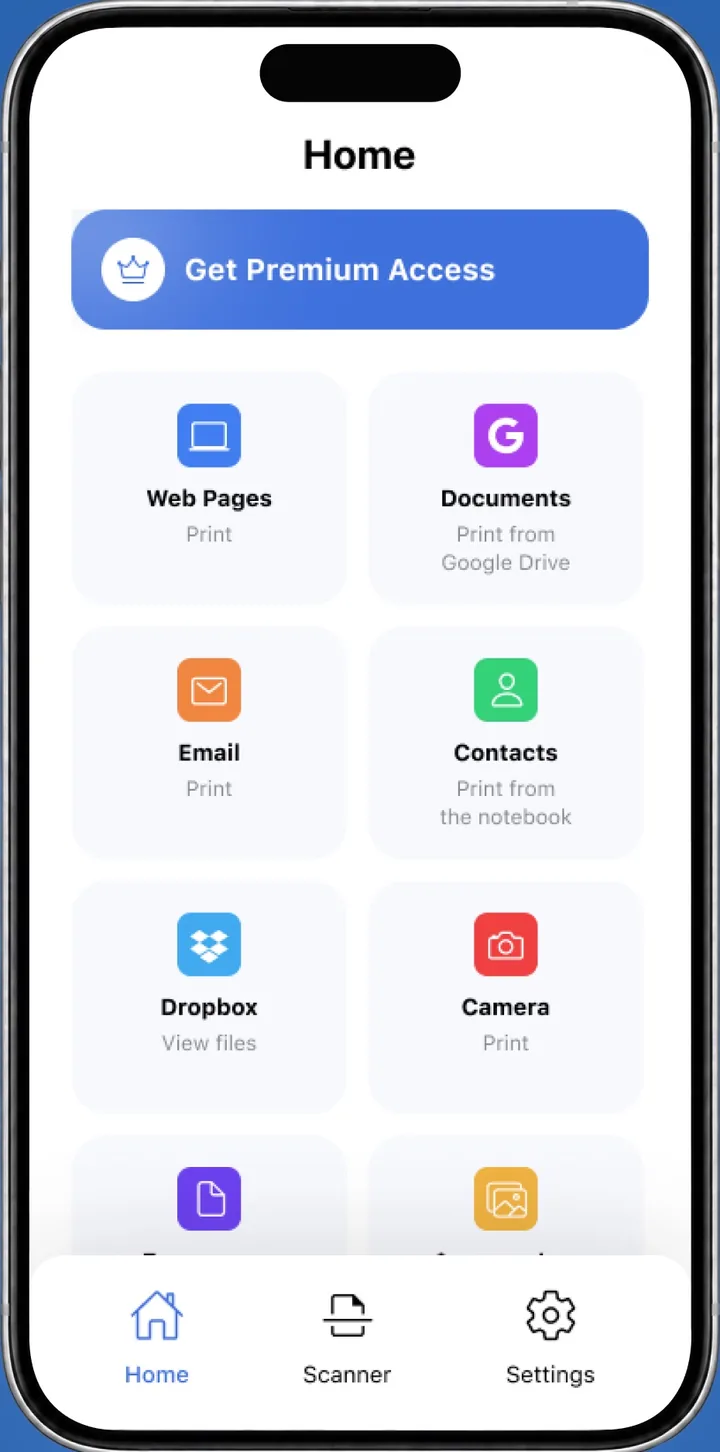
Open Smart Printer. It searches your Wi-Fi for the printer, shows it in a list and prints without AirPrint. Print a test page first to confirm the link works.
If the printer doesn't show up even there, the printer assistant asks what you see and walks you through the fix step by step.
AirPrint not showing up on iPhone: 8 checks
Still want to fix it in settings? Try these in order and print after each one.
- Put the iPhone on the same Wi-Fi network as the printer in Settings > Wi-Fi.
- Turn off VPN and Low Data Mode for the test.
- Check the printer's screen or Wi-Fi light. If it isn't connected, rejoin your Wi-Fi from the printer's menu.
- Restart the printer. Unplug it for 30 seconds, plug it in and wait for the Wi-Fi light to stop blinking.
- Restart the router and wait two minutes.
- Restart the iPhone or iPad and open the Print screen again.
- In Settings > Wi-Fi, tap the More Info button next to your network, tap Private Wi-Fi Address and choose Off for the test.
- As a last step, reset network settings: Settings > General > Transfer or Reset iPhone > Reset > Reset Network Settings. This also erases saved Wi-Fi networks, passwords and VPN settings.
When an Epson printer doesn't show up
Check the Epson's own Wi-Fi menu first. It should say connected and show the same network name as your iPhone. If your router has separate 2.4 GHz and 5 GHz names, try the 2.4 GHz one.
Then check AirPrint support as shown in our AirPrint printers guide and update the printer's firmware from its menu. Smart Printer prints to Epson printers without AirPrint.
When the printer is not AirPrint compatible
A printer that lacks AirPrint will never appear in the iPhone's list, however many times you restart it. Check the box, Apple's AirPrint search or the printer's menu. If it isn't supported, use Smart Printer, the maker's app or the other routes in our print without AirPrint guide. Apple's About AirPrint page explains how to check a model.
Printer says offline instead?
Offline on the printer's status is a close cousin of this problem. The causes are mostly the same, plus a paused print queue on a computer. Our printer offline guide covers it.
What to remember
- AirPrint fails mostly because the iPhone and printer aren't on the same Wi-Fi.
- Smart Printer prints without AirPrint, so you can skip the troubleshooting.
- Restart the printer, router and phone, then turn off VPN.
- A printer that doesn't support AirPrint never shows up in the list.