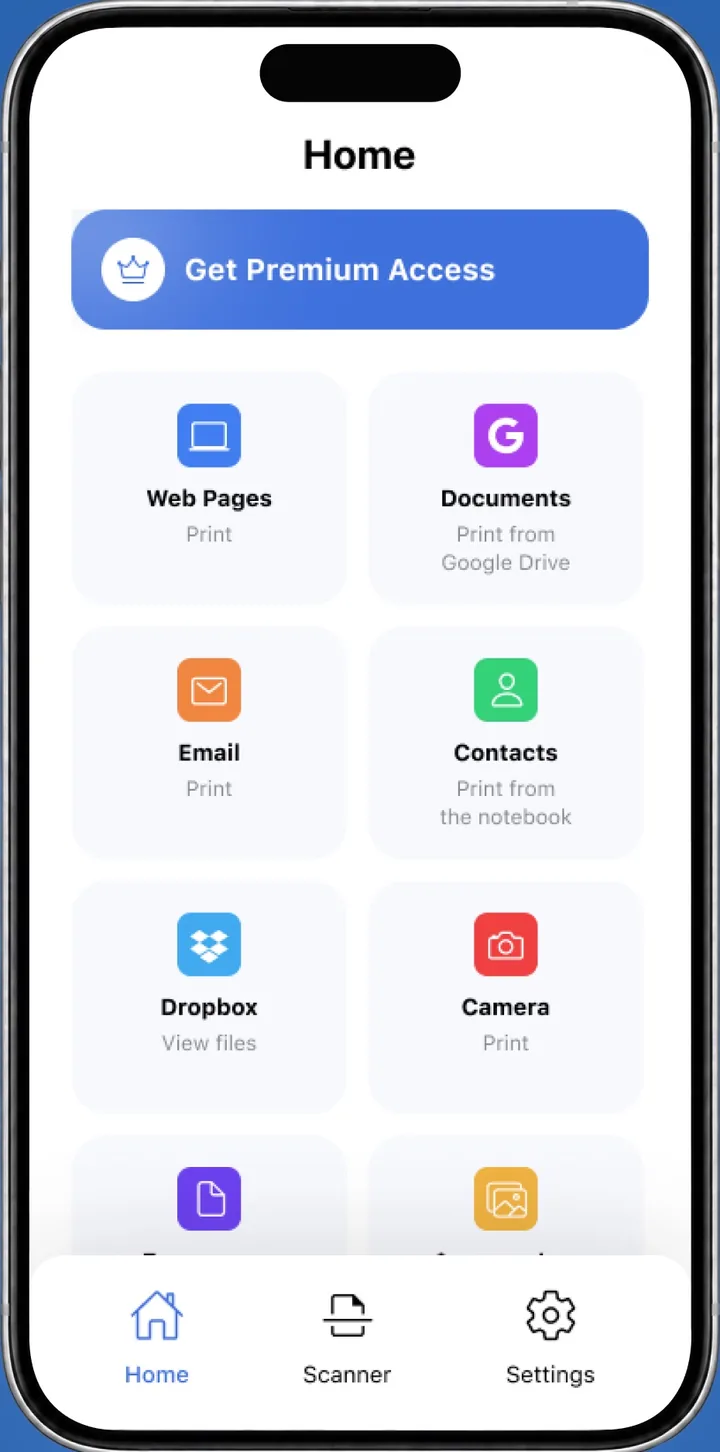
HP DeskJet 4155e: Connect to WiFi With Setup Mode and the HP App
 By the Smart Printer team · Updated · 4 min read
Short answer
To connect the HP DeskJet 4155e to Wi-Fi, restore its Wi-Fi setup mode, then add it in the HP app. Hold the Wireless and Cancel buttons together for 3 seconds, until the Power button blinks. Finish the setup in the HP app (formerly HP Smart) within 2 hours. Smart Printer then finds the printer from your iPhone.
Contents
Before you start
The HP DeskJet 4155e belongs to the HP DeskJet 4100e series. HP sets it up through the HP app (formerly HP Smart), which asks for your Wi-Fi password. HP lists the series on its HP DeskJet 2700, 2700e, 4100, 4100e support page.
- Keep your iPhone, iPad or computer on the Wi-Fi network you want the printer to join.
- Turn on Bluetooth on your phone, since the HP app can use it during setup.
- Put the printer close to the router for the first setup.
- Have the printer on, with paper loaded and ink cartridges installed.
Restore Wi-Fi setup mode with the buttons
Use this when the printer is new, you changed the router or the Wi-Fi password, or the printer lost its connection. HP calls it restoring Wi-Fi setup mode. HP describes the same steps in Restore Wi-Fi setup mode on your HP printer.
- Press and hold the Wireless button and the Cancel button together for three seconds.
- Release both buttons when the Power button starts blinking.
- Wait for the blue Wireless light to blink continuously. That means setup mode is on.
- Go to the next section right away. HP says to finish the network setup within two hours.
If the two hours run out, repeat these steps to turn setup mode back on.
Finish the connection in the HP app
With setup mode on, the app does the rest.
- Install the HP app on your phone and open it. Allow the permissions it asks for.
- Tap Add Printer or the plus icon. The app looks for printers in setup mode.
- Select your HP DeskJet 4155e from the list.
- Enter your Wi-Fi password when the app asks for it.
- Wait until the Wireless light stops blinking and stays solid blue.
Print from your iPhone with Smart Printer
After the printer is on your Wi-Fi, Smart Printer finds it on the same network. It prints photos, PDFs, files and web pages from your iPhone or iPad without drivers, and prints a test page in one tap.
If the printer does not appear, our guide to adding a printer to iPhone covers the usual causes.
What the lights tell you
Watch the Power button and the Wireless light during setup.
- Power button blinking: the printer registered the button hold.
- Wireless light blinking: setup mode is on and the printer waits for the HP app. The same blink can mean the printer is disconnected.
- Wireless light solid blue: the printer joined your network.
- No change after the hold: repeat the two-button hold for a full three seconds.
After a new router or password
The printer remembers the old network until you replace it. Run the restore steps above, then add the printer in the HP app again with your phone on the new Wi-Fi.
If the HP will not connect
These are the most common reasons the setup stops:
For the general order of steps on any printer, read how to connect a printer to Wi-Fi. If it connects and then shows offline, see why a printer says offline.
- The Wireless light never blinks. Repeat the two-button hold for three seconds.
- The HP app can't find the printer. Check that your phone is on the same Wi-Fi, Bluetooth is on and setup mode is still on.
- You are on a guest network, such as a hotel or campus Wi-Fi. Printers usually cannot join those, so use your home network.
- The setup window expired. Restore setup mode again.
What to remember
- Hold Wireless and Cancel together for three seconds to restore setup mode.
- The Power button blinks first, then the Wireless light blinks in setup mode.
- Finish the setup in the HP app within two hours.
- Smart Printer finds the printer afterwards for printing from an iPhone.