Print From iPhone Without AirPrint (and iPad)
 By the Smart Printer team · Updated · 3 min read
Short answer
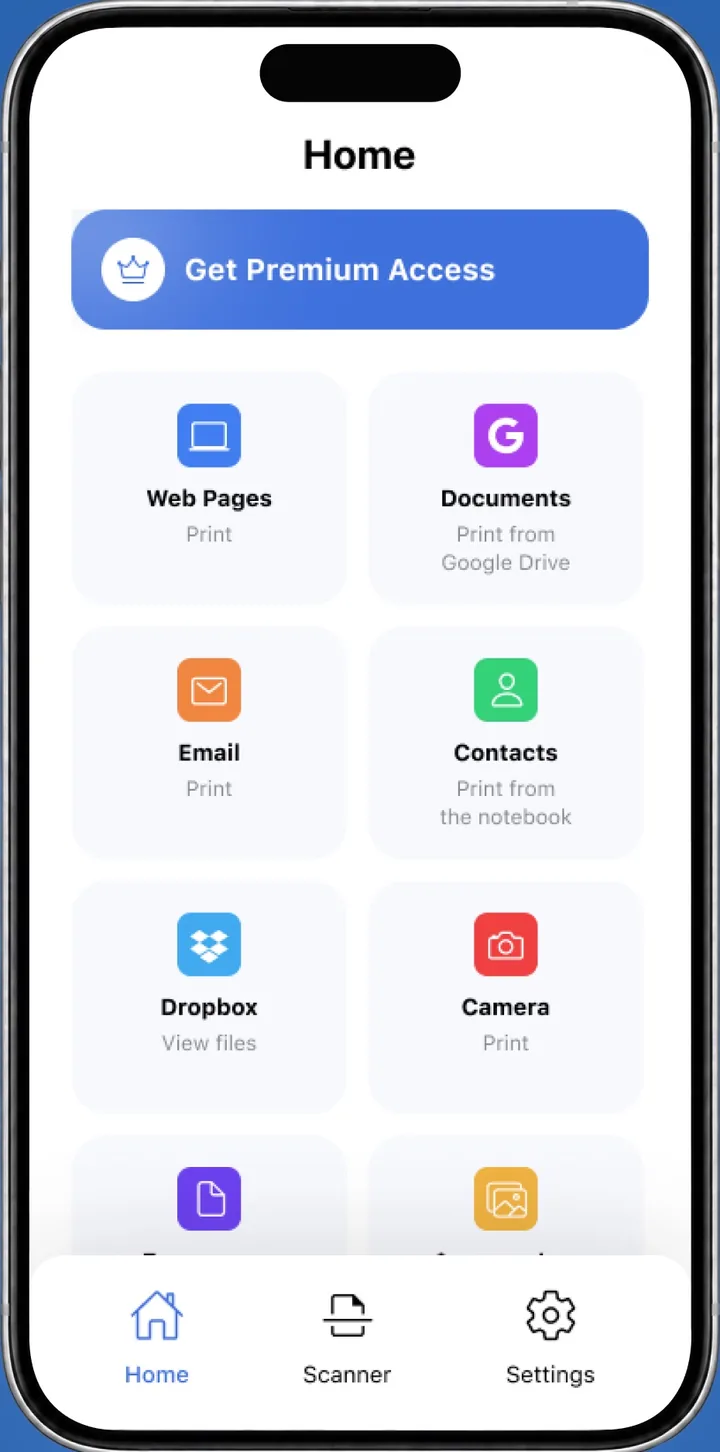
To print from iPhone without AirPrint, install Smart Printer. It finds your printer on Wi-Fi and prints photos, PDFs, files and web pages without AirPrint or drivers. This guide covers 4 methods: Smart Printer, the printer maker's app, Wi-Fi Direct and a computer the printer is plugged into. Print a test page in 1 tap to check the link.
Contents
Why print from iPhone without AirPrint?
AirPrint is Apple's built-in way to print, and many printers support it. Older printers and some budget models lack it, and some that have it never show up in the iPhone's list. The four methods below work on iPhone and iPad, starting with the quickest. Apple describes it in Use AirPrint to print from your iPhone or iPad.
Method 1: Smart Printer
Smart Printer is the quickest of the four, because it does the setup for you.
- Install Smart Printer from the App Store and open it.
- Make sure the iPhone and the printer are on the same Wi-Fi network.
- Let the app search, then pick your printer from the list.
- Choose a photo, PDF, file, web page or email.
- Set paper size and copies, then tap Print.
Not sure it works? Print a test page first. It takes one tap.
How to connect iPad to printer without AirPrint
Smart Printer runs on iPad as well, with the same steps: open it, pick the printer and print. That's the way to print from iPad without AirPrint when the Share > Print list is empty.
For more detail on the iPad side, read our print from iPad guide.
Method 2: the printer maker's app
HP, Canon, Epson and Brother each have an app for their own printers, and these apps print without AirPrint. You may need to create an account and turn on the printer's wireless setup first. Each app works only with its own brand, so a home with two brands needs two apps.
Method 3: Wi-Fi Direct
Many wireless printers can create their own Wi-Fi network, called Wi-Fi Direct. Find its name and password on the printer's screen or in the manual, then join it in the iPhone's Wi-Fi settings. Print with the maker's app or Smart Printer, and expect no Wi-Fi internet while you're on that network. HP explains it in HP printer setup (Wi-Fi Direct).
Method 4: print through a computer
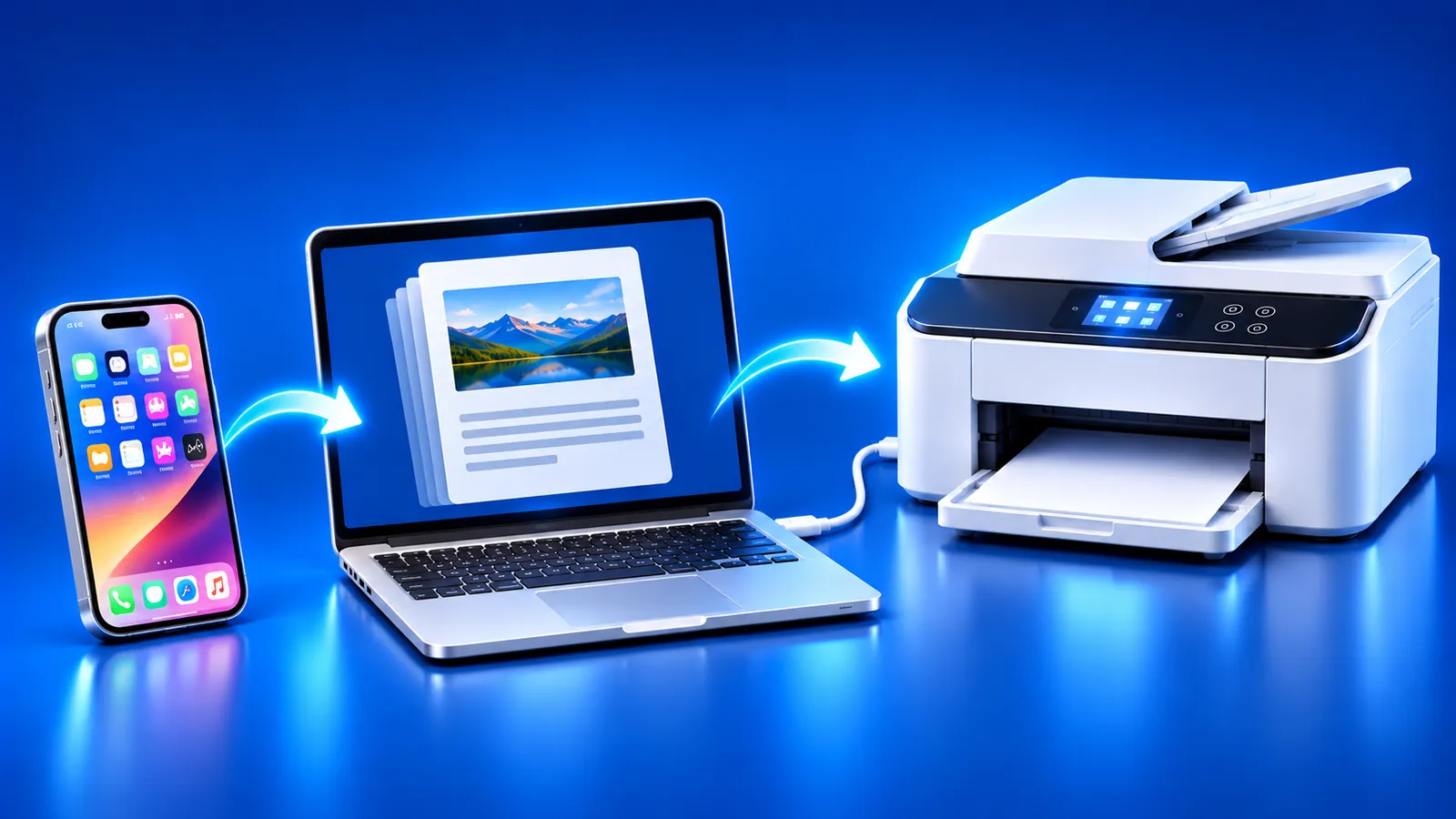
iPhone and iPad have no USB route for printing, so a USB-only printer can't take jobs from the phone directly. Send the file to the computer the printer is plugged into, by AirDrop to a Mac, email or iCloud Drive. Then print it from the computer as usual.
Which way to print without AirPrint fits you?
Pick by what you have at home and how much setup you want. The table sums up the four methods above.
If two methods fit, start with the one that needs the least setup. You can switch later, since the printer stays the same.
| Method | Works with | Setup |
|---|---|---|
| Smart Printer | Most Wi-Fi printers, any brand | Open the app and pick the printer |
| Maker's app | One brand only | Install the app, sign in, add the printer |
| Wi-Fi Direct | Printers that offer it | Join the printer's network, then print |
| Through a computer | USB-only printers | Send the file to the computer, print from there |
Still want AirPrint?
If you'd rather fix the built-in option, see our guides on AirPrint printers and AirPrint not working. They show how to check support and what to try when the printer is missing. Apple's About AirPrint page explains how to check a model.
What to remember
- Smart Printer prints from iPhone and iPad without AirPrint or drivers.
- The maker's app works too, but only for that brand.
- Wi-Fi Direct depends on the printer model.
- A USB-only printer prints through the computer it's plugged into.