How Do I Print an Email From My iPad?
 By the Smart Printer team · Updated · 3 min read
Short answer
To print an email from your iPad, open Smart Printer, pick the message or its attachment, choose your printer and print. In Mail, 3 taps reach the printer list: More Actions (the curved arrow in the bottom-right corner), Print, then No Printer Selected. The other 2 mail apps, Gmail and Outlook, have their own Print commands in the message menu.
Contents
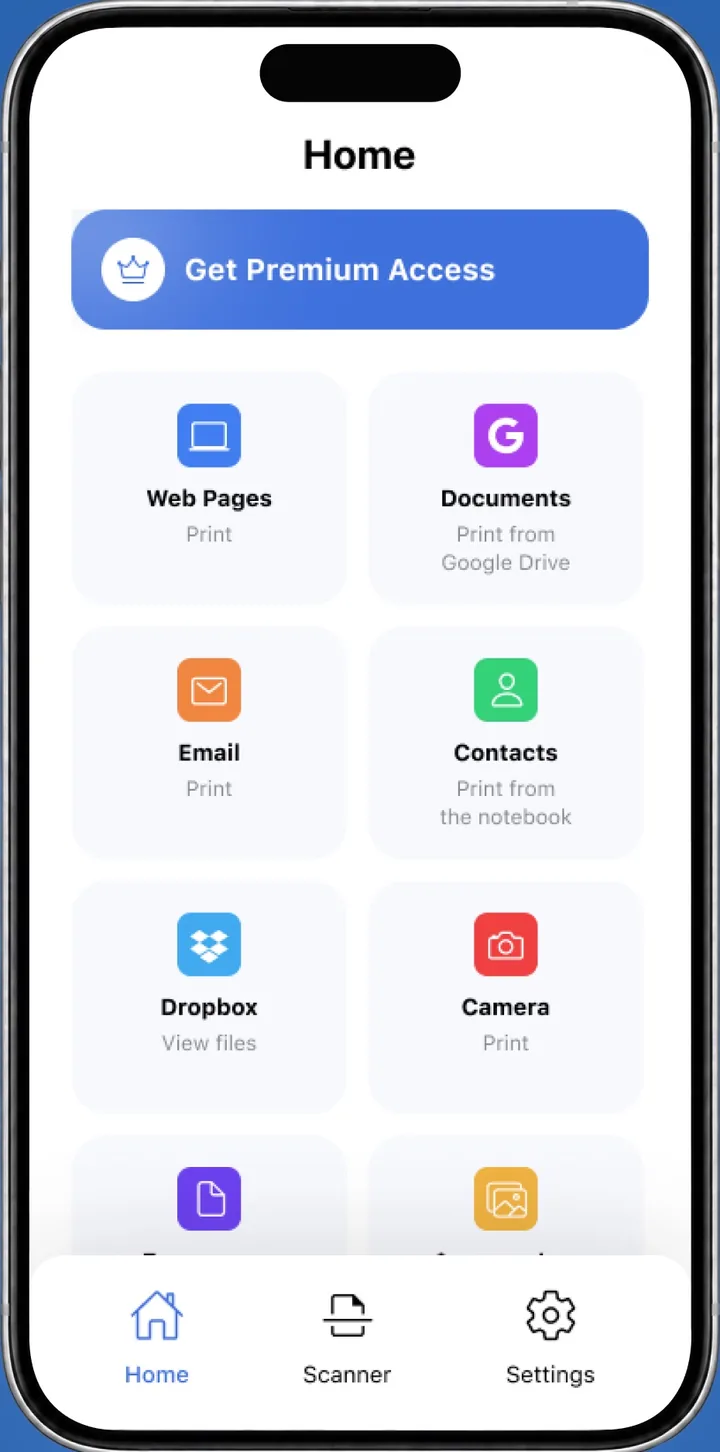
Print an email from iPad with Smart Printer
Smart Printer prints the message and its attachments from one app. Open it, pick the email and your printer, then set copies and paper size.
The app finds the printer on your Wi-Fi by itself. This also works when the built-in Print screen shows no printer.
Print an email in the Mail app on iPad
This is Apple's own way. It needs a printer that supports AirPrint on the same Wi-Fi as your iPad. Apple describes it in Print an email or attachment in Mail on iPad.
- Open the Mail app and open the message.
- Tap the More Actions button, the curved arrow in the bottom-right corner.
- Tap Print.
- Tap No Printer Selected and choose your printer.
- Set copies and pages, then tap Print in the upper-right corner.
To print an attachment instead, tap it to open the preview, tap Share, then choose Print.
Print an email in Gmail on iPad
In the Gmail app, open the email, tap More (three dots) at the top right of the message and tap Print. To print the whole conversation, tap More at the top right of the conversation and choose Print all. Then pick your printer on the Print screen. Google lists the steps in Print Gmail messages.
Print an email in Outlook on iPad
Microsoft lists printing as supported in Outlook for iOS. Open the email and look for Print in the message's menu, then pick your printer. If the whole thread prints, set a page range to keep only the pages you need. Microsoft's Outlook comparison table shows the support.
Print only the pages you need
Long emails and threads can run to many pages. Before you tap Print, check the page count on the Print screen. Set a page range so only the pages you need come out, and pick black and white if your printer offers it.
Smart Printer offers copies, page range, paper size such as Letter or A4, orientation and black and white.
Print an email thread or a message with photos
Pictures in the body of a message print as they appear on screen, and attached pictures print separately from their own preview. For a record of a whole exchange, check the preview for missing replies before the final print. For text messages instead of email, see how to print text messages.
If the printer doesn't appear
Check that the iPad and the printer are on the same Wi-Fi, then restart the printer. Our AirPrint not working guide goes through the rest.
You can also open Smart Printer, which searches the network and prints without AirPrint. For the general steps, see how to print from iPad.
What to remember
- In Mail on iPad, open the message, tap More Actions, then Print.
- Gmail prints from its More menu, and Outlook has its own print option.
- Attachments print from their preview: Share, then Print.
- Smart Printer prints emails and attachments even when AirPrint doesn't find the printer.