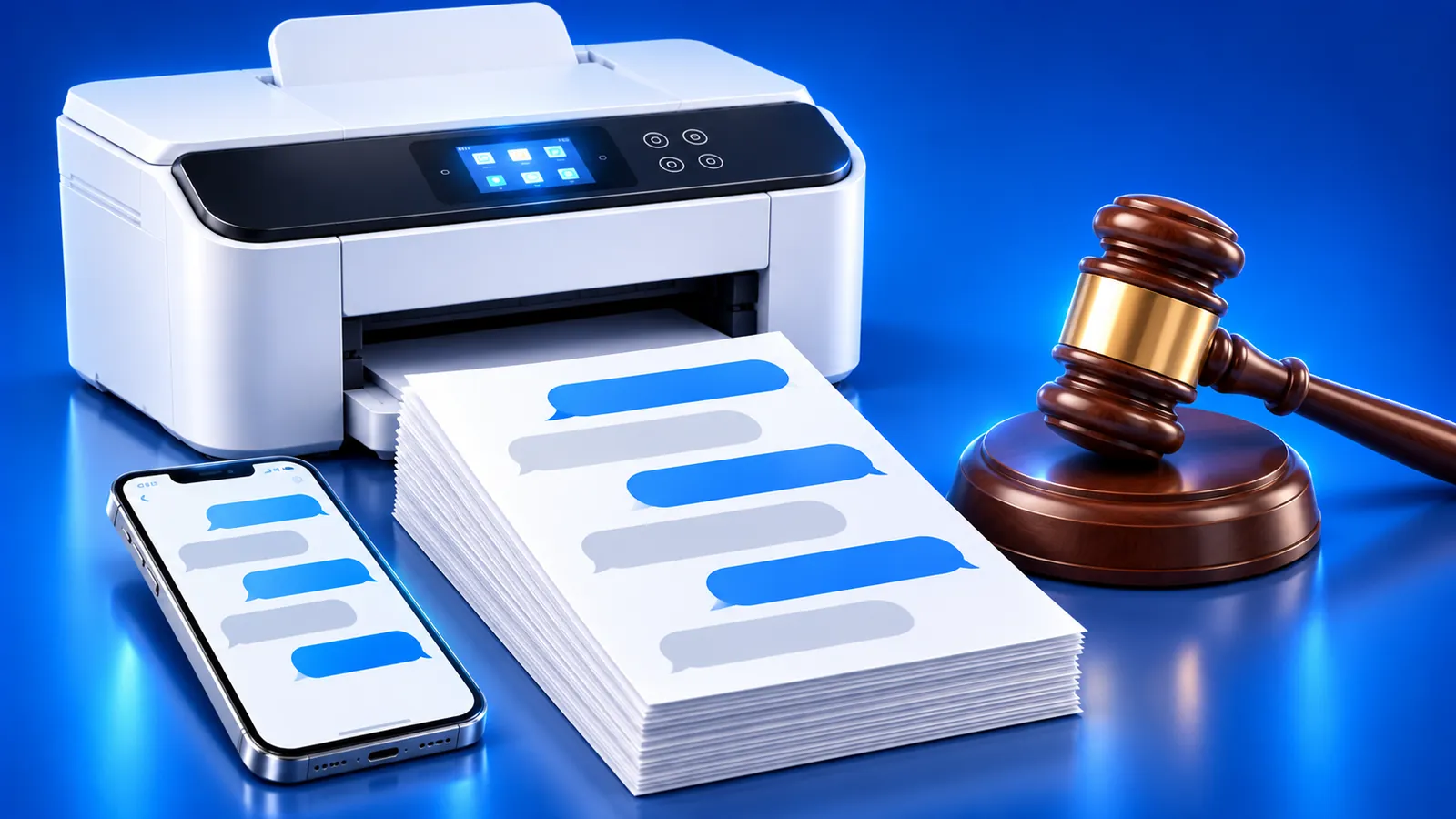
How to Print Text Messages for Court From an iPhone
 By the Smart Printer team · Updated · 3 min read
Short answer
To print text messages for court, screenshot the whole conversation with dates, times and the phone number visible, then print the screenshots in order. Smart Printer prints them from your iPhone: pick Letter paper and print 1 page first to check the text. A Mac is the 2nd route: open Messages and press Command-P to print or save a PDF.
Contents
What the printout should show
A clear printout shows who wrote each message and when. Capture these details:
- The contact name or phone number at the top of the thread.
- The date and time of each message.
- Every message in order, with no gaps between screenshots.
- Images and attachments that belong to the conversation.
Before you start
Don't delete anything from the conversation. Scroll to the very first message you need, even if it is months back, so the printout has no holes.
Note the range you want: the first date and the last date. Have the phone charged and the printer ready, because the steps below take a few minutes for a long thread.
Step 1: take screenshots on your iPhone
- Open the conversation in Messages and scroll to the first message you need.
- Press the side button and the volume up button together. On iPhone SE, press the Home button and the side button. Apple lists every model in Take a screenshot on your iPhone.
- To capture exact times, swipe left on a message bubble and hold it while you take the screenshot.
- Scroll down by about one screen, take another, and repeat until you reach the last message.
- Tap the contact name at the top and take one more screenshot of the screen that shows the number.
Screenshots save to Photos. Open Photos and go to Collections > Media Types > Screenshots to find them in order.
Step 2: print the screenshots
Open Smart Printer and pick the screenshots in order. Pick Letter paper, portrait orientation and the margins you want, then tap Print. Print one page first to check that the text is readable.
To use the built-in way, open Photos, select the screenshots, tap Share and then Print. See how to print from your phone if the printer does not appear. Apple describes it in Use AirPrint to print from your iPhone or iPad.
Another route: print from a Mac
A Mac gives you a PDF of the whole thread with no screenshots. It works when the conversation is available in Messages on the Mac.
- Open the Messages app on your Mac and select the conversation.
- Choose File > Print, or press Command-P.
- In the print dialog, click PDF and choose Save as PDF, or pick your printer and click Print.
- Check that dates and names are visible on the pages.
Organize the pages
- Number the pages in the corner, for example Page 1 of 12.
- Add a cover page with both phone numbers, the date range and the date you printed.
- Print in color, so the blue and gray bubbles keep each sender easy to tell apart.
- Keep the original screenshots or the PDF saved on your phone and in cloud storage.
Print in good quality
Set the paper to Letter and the print quality to normal or best. Small text in screenshots gets hard to read when it prints too light.
If a page comes out faint or striped, run a nozzle check from the printer test page tool and fix that before you reprint.
Keep a digital copy
Save the PDF or the screenshots in a folder with a clear name, such as the contact name and the date range. Put a second copy in iCloud Drive, Google Drive or Dropbox. Smart Printer also prints files from those services, so you can reprint any page later from your phone.
What to remember
- Show dates, times and the phone number in the screenshots.
- Print the screenshots in order from Photos or Smart Printer.
- On a Mac, use File > Print and Save as PDF.
- Number the pages and add a cover page.